

You paid, the charge went through, and Brawl Stars still looks exactly the same. No extra gems. No active Brawl Pass. No new premium rewards. That gap is frustrating, especially when your wallet or card already shows the money leaving.
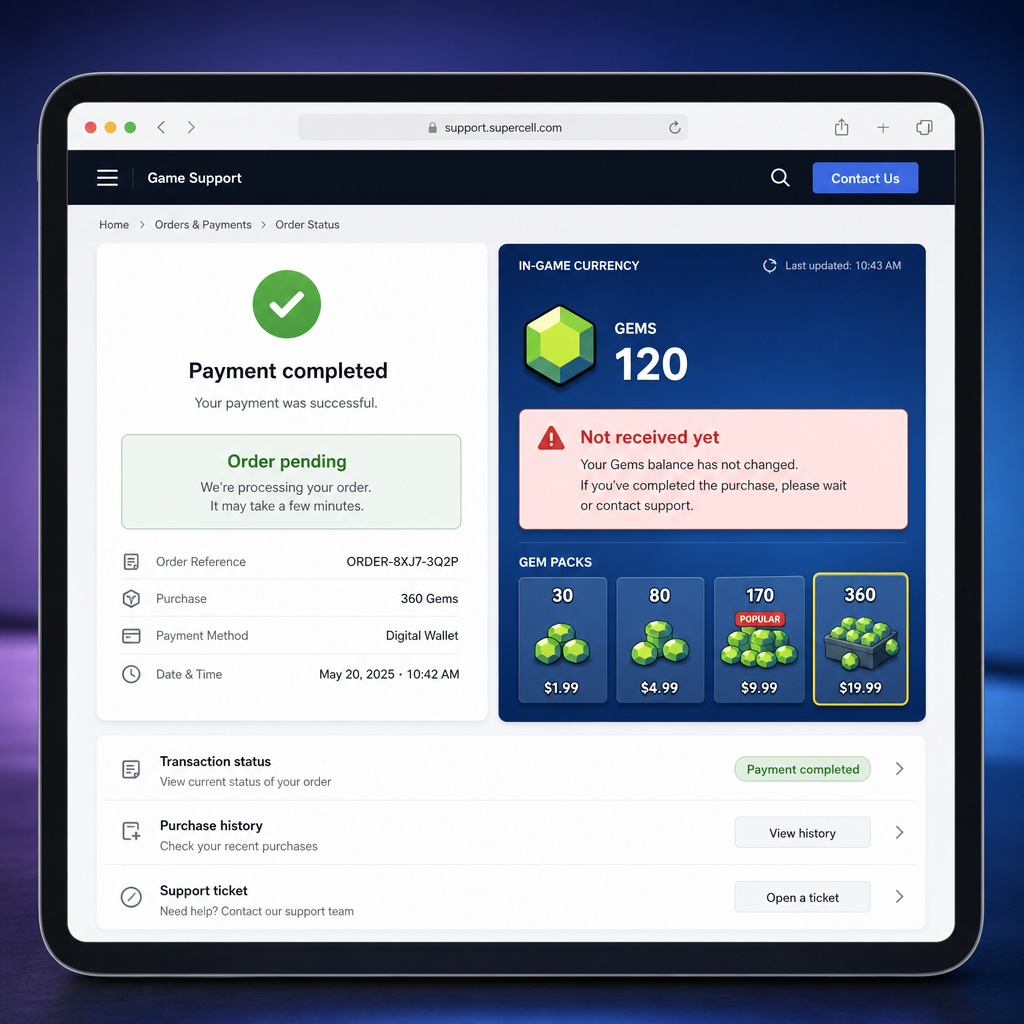
Do not treat it as a failed purchase right away. In many cases, the payment, the recharge platform, and the game delivery system are simply not showing the same state yet. The safer first move is to check the order ID, player ID, account details, and delivery status before buying again or filing a dispute.
Use the steps below to sort out whether the order is still processing, tied to the wrong details, blocked by a product or region issue, or ready for support to review.
Symptom Check
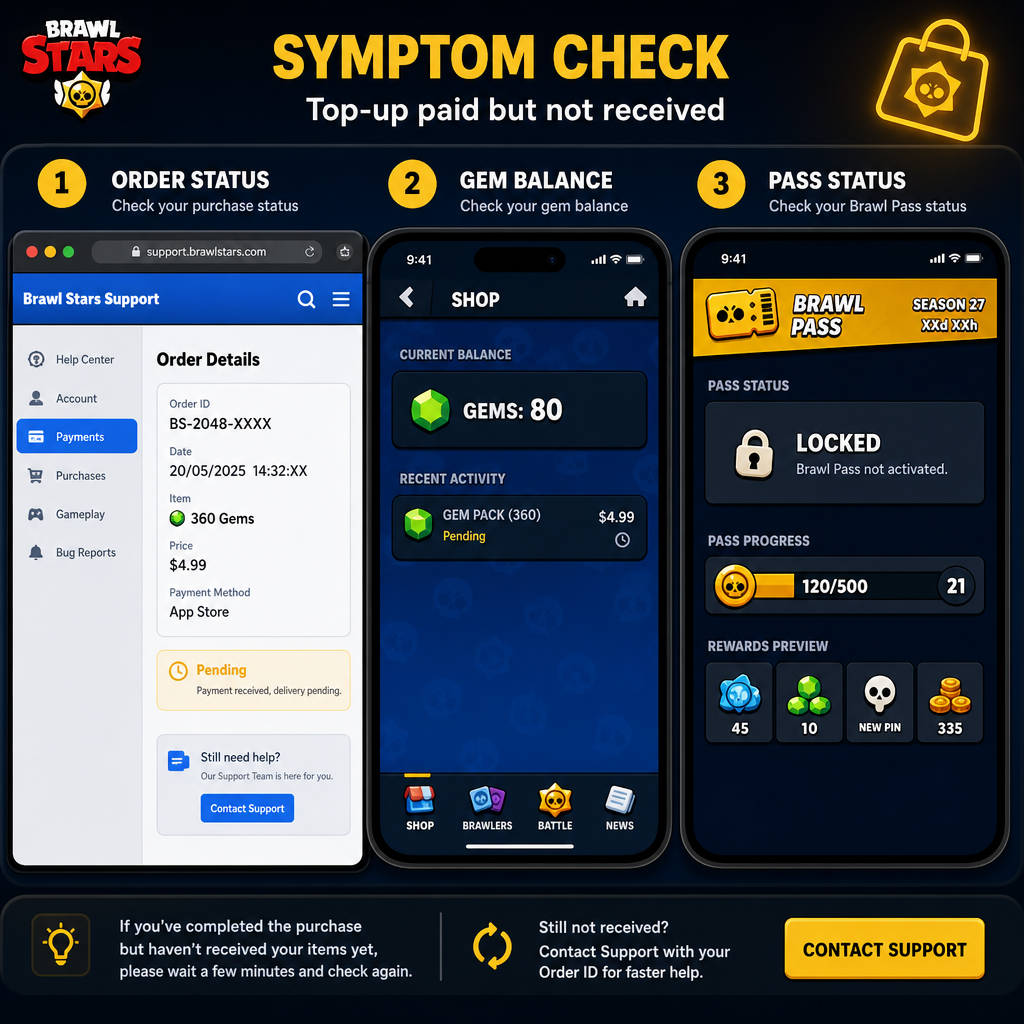
Start with what you can see. Different symptoms point to different causes, and lumping every delay together can make the fix slower.
The most common case is simple: payment completed, but the gems are missing. Your bank app, e-wallet, card statement, or top-up site shows a successful charge, yet your in-game gem balance has not changed. The order page may say “pending,” “processing,” “under review,” or “waiting for delivery.” That usually means the seller or delivery route has not finished the order yet.
Another case is a Brawl Pass that still is not active after purchase. You may still see the buy button, or the season screen may not show premium rewards as unlocked. This can happen if the order is queued, the wrong player ID was entered, or the selected pass product does not match the account, season, or region setup.
Timing causes plenty of confusion too. Some platforms send a payment confirmation before the game item is delivered. In that situation, the order status page matters more than the payment notification.
Also make sure you are logged into the exact Brawl Stars account used for the top-up. Many players switch between Supercell ID accounts, guest profiles, or shared family devices. If delivery went to the intended player ID but you opened a different account, it will look missing.
What Usually Causes This
A delay does not mean the order is gone. Brawl Stars top-ups can pass through payment verification, risk checks, product matching, player ID validation, and delivery confirmation. If one checkpoint slows down, the order may sit in pending status.
The easiest explanation is normal processing delay. Busy periods, season resets, new pass launches, promotions, and payment gateway traffic can all slow delivery. If the provider shows the order as pending, wait within the stated delivery window before opening multiple tickets.
Wrong account details are another common cause. Depending on the seller, Brawl Stars orders may rely on a player ID, player tag, region, or account identifier. One wrong character, a missing symbol, an old copied ID, or a mistaken account can stop delivery or send it to the wrong place. That is why order ID lookup and player ID checking should happen together.
Payment status can also be misleading. A bank may show an authorization hold even if the merchant has not captured the payment. An e-wallet may mark the transfer successful while the top-up system is still waiting for final confirmation. During that middle stage, the order may not be ready for delivery.
Product mismatch is another possibility. Gems, Brawl Pass items, and special bundles are not always interchangeable. If you bought a pass-related item but the account, season, or region does not qualify, fulfillment can be delayed or rejected. Check the order record for the exact product name, not just the amount paid.
Some orders are slowed by risk review. Unusual payment behavior, repeated failed attempts, sudden high-value purchases, VPN use, inconsistent billing location, or several orders in a short time can trigger manual checks. Annoying, yes. But those checks exist to limit stolen payments and account abuse.
Fix Sequence
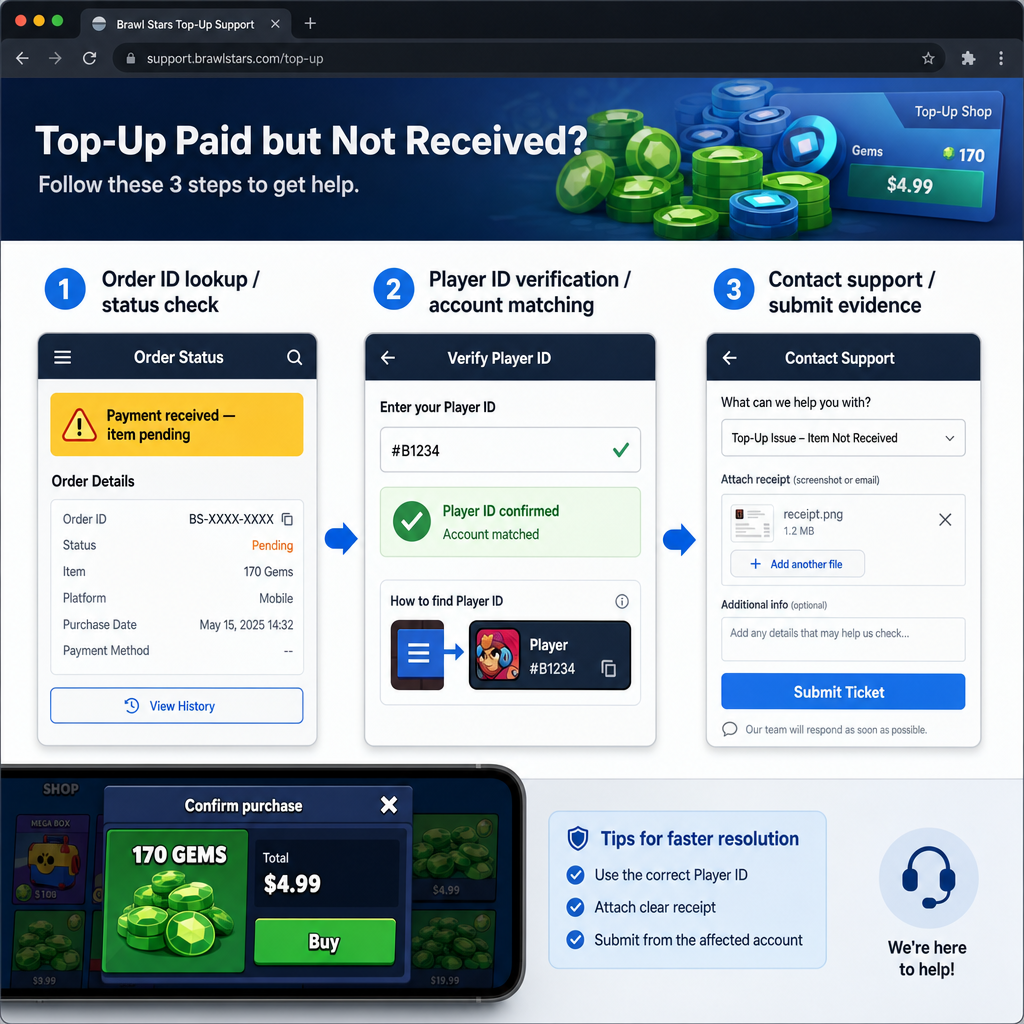
Work through this in order. Duplicate purchases, chargebacks, and scattered support messages often turn a small pending-order issue into a bigger mess.
Step 1: Do not place the same order again immediately. If the first order is pending, a second one can create duplicate charges, duplicate delivery, or another stuck order. Find out what happened to the first purchase first.
Step 2: Capture your order ID. Check the top-up site, app, email receipt, SMS receipt, or payment confirmation page. Save a screenshot showing the order ID, payment time, product name, amount, and status. Sellers usually need the order ID before they can trace anything.
Step 3: Check the order status page. Look for wording such as paid, pending, processing, completed, failed, refunded, under review, or delivered. A payment receipt is not enough by itself. You need to know whether the merchant’s order system has moved the purchase into delivery.
Step 4: Verify the player ID or player tag used. Open Brawl Stars and check the exact account identifier required by the recharge service. Compare it character by character with what you entered during checkout. Watch for similar-looking letters and numbers. If the platform asked for a player ID, your nickname is not a substitute.
Step 5: Confirm you are checking the right Brawl Stars account. Log out and back into the correct Supercell ID if needed. If the device is shared, switch accounts carefully. A missing-currency report is sometimes just the wrong profile being checked after payment.
Step 6: Restart the game and refresh the account. Close Brawl Stars fully, reopen it, and let the account sync. If delivery happened while the app was open, the balance or pass status may update after a fresh login.
Step 7: Compare product and season details. If the issue is a missing Brawl Pass, confirm the order was for the current pass product and the correct account. For gems, confirm the expected quantity and check whether anyone with account access already spent them.
Step 8: Wait within the platform’s stated delivery window. If the order says pending or processing, follow the seller’s delivery range. Many top-ups complete within minutes, but manual review or peak traffic can take longer. Keep checking the same order ID instead of starting fresh conversations with incomplete details.
Step 9: Prepare a clean support packet. If the delivery window has passed, collect the order ID, player ID, player tag, purchase time, payment method, product name, amount paid, order status screenshot, and an in-game screenshot showing the missing gems or inactive Brawl Pass.
Step 10: Contact the correct support channel. If you bought from a third-party top-up provider, start with that provider because it owns the order record and payment trail. If you purchased directly inside the game through an app store, use the store receipt and official support route. Mixing channels can slow things down because one side may not be able to see the other side’s transaction data.
Risk Warnings
Do not share your Supercell ID login code, email password, payment password, or full card details with anyone claiming they can “push” the order. A real order lookup should need order and player details, not control of your account.
Be careful with screenshots. It is fine to show the order number, product, time, and status, but hide sensitive payment information where possible. Never post your receipt publicly in comments, Discord chats, or social media threads. Public receipts can be copied and used to impersonate you in a support claim.
Avoid chargebacks as the first move. If the order is only delayed, a chargeback can trigger account or merchant restrictions, block future payments, and complicate any pending delivery. Use refund or dispute routes only after the seller has had a fair chance to resolve the order.
Do not trust anyone offering extremely cheap gems, instant pass activation, or unofficial account changes. Missing currency after a suspicious top-up is much harder to fix, and unsafe sellers may use stolen payments or ask for account access. A cheap order can turn into an account security problem.
Also avoid changing your player ID details after submitting a ticket unless support asks you to. If the information keeps changing, the agent may struggle to match your claim to the original order record.
When Support Is Actually Needed
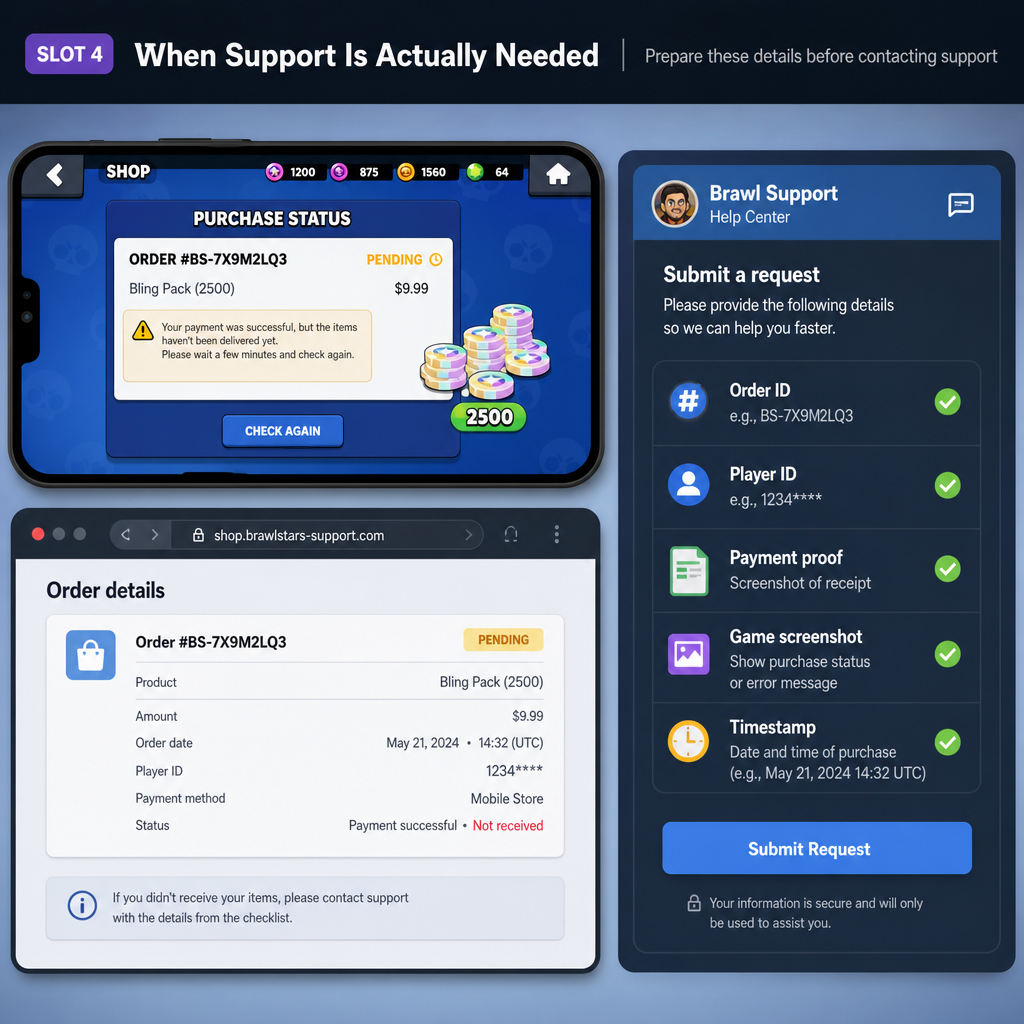
Support is needed when the order status and the game result no longer line up after the normal delivery window. For example, if the order page says completed or delivered but your gems are still missing, the order needs a manual trace. Support can check whether delivery was sent, rejected, delayed, or attached to another player ID.
You should also contact support if the player ID was entered incorrectly. Be direct. Provide both the wrong ID submitted and the correct Brawl Stars player ID. Some providers can stop or redirect an undelivered pending order, but once delivery completes to another valid account, recovery may be limited.
If payment was taken but the order page says failed, expired, or unpaid, support needs payment proof. This is where the payment reference and order ID matter. A bank screenshot alone may not identify the order unless it includes the time, amount, and merchant details.
Support is also the right step for long pending orders, especially when the stated delivery time has clearly passed. Use one ticket per order ID and keep the message structured. A useful message is: “My Brawl Stars order ID is X. The product is Y. Payment completed at this time. The order status is pending. My player ID is Z. Gems/Brawl Pass are not received in-game.” That is much easier to act on than “I paid and got nothing.”
For direct in-game or app store purchases, keep the official receipt. App store receipts and game support systems usually rely on transaction identifiers, not third-party top-up order IDs. The logic is similar, but the proof format is different.
FAQ
Why did my payment succeed but my Brawl Stars gems are not received?
Payment success only means the payment side moved forward. The recharge order may still be pending, under review, or waiting for delivery confirmation. Check the order status with the order ID before assuming the gems are lost.
How do I check a delayed Brawl Stars recharge order?
Use the order ID from your receipt or top-up account history. Open the platform’s order status page or purchase history, then compare the listed product, payment time, player ID, and delivery state. If it is still pending, follow the delivery window shown by the seller.
Can a wrong player ID cause currency missing problems?
Yes. If the recharge system uses player ID or player tag and the wrong details were submitted, the order may fail, stay pending, or deliver to the wrong account. Verify the exact ID inside Brawl Stars and send both the order ID and correct player ID to support if there is a mistake.
Should I buy the gems again while the first order is pending?
No. Not until you know what happened to the first order. A second purchase can create duplicate charges or duplicate pending orders. Wait for the first order status to update, or ask support to confirm it.
What if my Brawl Pass is not active after payment?
First confirm that the order was for the correct Brawl Pass product and the current account. Restart the game and check the season screen again. If the order says delivered but the pass is still inactive, collect screenshots and contact the seller or official support, depending on where you purchased.
How long should I wait before contacting support?
Follow the delivery time stated by the recharge platform. If there is no clear timeframe, wait a reasonable short period for normal processing, then contact support once the order remains pending or is marked delivered without the in-game item appearing.
What proof should I send for order troubleshooting?
Send the order ID, player ID, player tag if required, product name, purchase time, amount paid, payment confirmation, order status screenshot, and an in-game screenshot showing the missing gems or inactive Brawl Pass. Keep sensitive payment details hidden.
Bottom Line
When Brawl Stars gems or a Brawl Pass do not appear after payment, treat it as an order status issue first. The fastest useful path is not buying again or sending a vague complaint. Check the order ID, confirm the player ID, review the pending status, and wait within the stated delivery window.
If the order stays delayed, or if it says delivered while the item is still missing, send support a clean set of evidence. Precise order details get better results than a rushed message with no order number. Keep the record tidy, protect your account information, and let the order status determine the next step.