

You tap the icon expecting to join a stream or chat with friends, but the spinner just keeps spinning. Sometimes you get a vague message about a network abnormality. Other times the app crashes straight back to the home screen. It is annoying, especially if you are mid-session or trying to claim daily rewards. This happens more often than you think. Usually, it is not a permanent ban. It is just a connectivity glitch or a config hiccup.

Panic sets in fast. Users assume the account is compromised or the platform is dead. Most of the time, the problem lives in your device settings, unstable internet, or an outdated app version. We pulled together a checklist based on common community reports to help you isolate the problem. You do not need to be a tech expert. You just need to be methodical. Skipping steps usually leads to reinstalling the app for no reason, which wastes time and data.
You want access back without triggering security flags. Aggressive moves like changing passwords repeatedly or using unauthorized tools can make the login error worse. Start with the root causes to understand what is happening behind the scenes. Then move into actionable steps that have resolved this for most users. If you are ready to get back online, start with the underlying reasons why the app refuses to connect.
Root Cause Matrix
Knowing why the app is not working stops the blind guessing. Problems generally fall into three buckets: server-side issues, client-side connectivity, or account-specific restrictions. Server-side issues are out of your control. They happen during maintenance or unexpected outages. If the servers are down, restarting your phone will not fix the login error. Client-side connectivity involves your Wi-Fi, mobile data, DNS settings, or firewall. This is the most common culprit for network abnormal messages. Finally, account-specific restrictions include verification issues, temporary bans due to suspicious activity, or region locks.
Identifying your category saves time. If friends can log in but you cannot, it is likely your device or account. If no one can log in, it is a server outage. Check social media channels or community forums to see if others are reporting downtime. If the service is up globally, focus on your local network environment and app installation. Do not ignore cache corruption. It frequently causes the app to hang on the loading screen even when the internet is perfectly fine.
Step-by-Step Troubleshooting

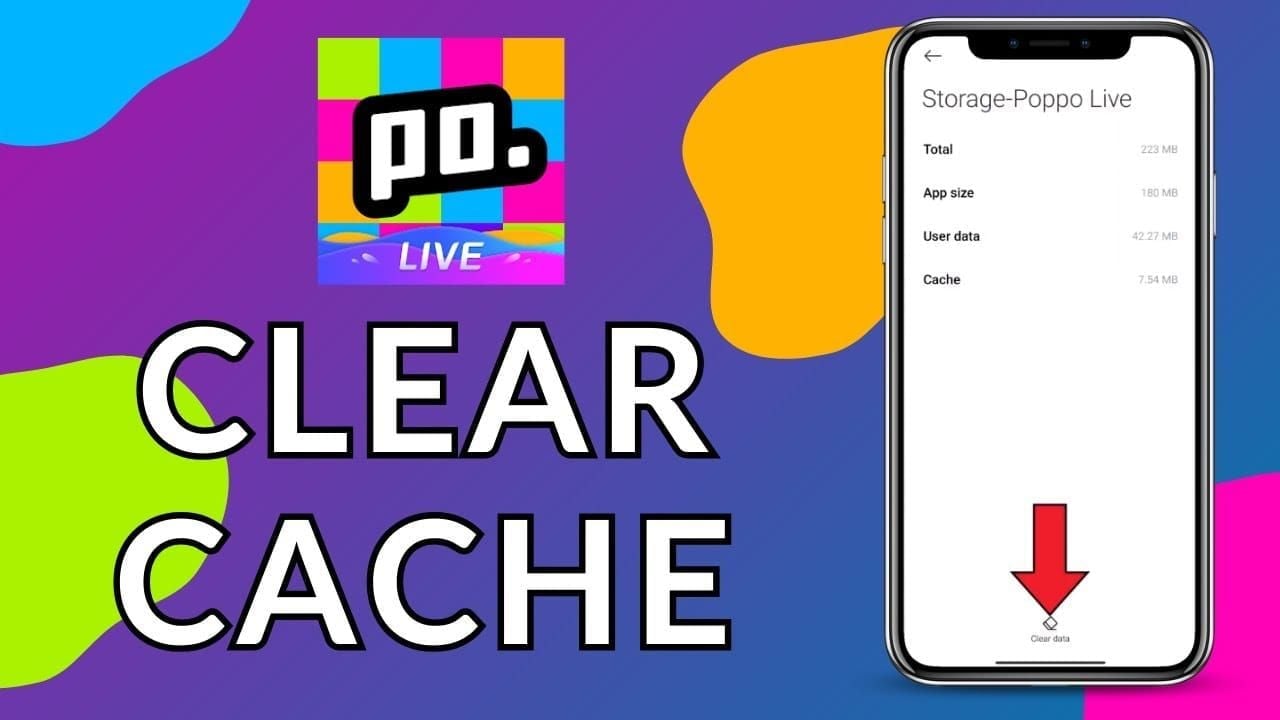
Start simple. Toggle your internet connection. Switch from Wi-Fi to mobile data or vice versa. Sometimes a specific IP range is throttled, and changing networks bypasses the restriction. Ensure your signal strength is adequate. Weak signals cause packet loss that triggers network abnormal errors. Next, clear the app cache and data. Go to device settings, find the application manager, locate the app, and clear the cache. If that fails, clear the data. Note this will reset local settings within the app.
Verify the app is updated. Developers patch login bugs and security protocols frequently. An outdated version may fail to handshake with the current server infrastructure, resulting in a cannot log in state. Visit the official store or trusted platform to download the newest build. If you are using an APK from a third-party source, ensure it is verified. Unverified mods often contain code that conflicts with official authentication servers. After updating, restart your device completely. This clears temporary system files that might be interfering with network permissions.
Check date and time settings. Incorrect system time can break SSL certificates, preventing secure connections required for login. Set your device to automatic time and time zone. If you use a VPN, try disabling it. VPNs can bypass region locks, but they can also trigger security alerts that block access. Conversely, if you are in a restricted region, enabling a stable VPN might be necessary. Test both states. Finally, reinstall the app if nothing else works. Uninstall completely, restart the phone, and download a fresh copy to ensure no corrupted files remain.
If Still Not Resolved
If you have followed every step and the app is still not working, the issue may be deeper than a standard glitch. Wait a few hours before trying again. Sometimes server-side propagation takes time, and your account status might be updating in the background. Continuously attempting to log in during this window can lock your account temporarily due to too many failed attempts. Step away from the device. Try again later in the day or the next morning.
Monitor official communication channels for maintenance announcements. Developers often post notices about scheduled downtime that explains the login error. If there is no announcement and the issue persists for more than 24 hours, it may be a specific account flagging issue. At this point, you have exhausted local troubleshooting options. Continuing to tweak settings is unlikely to yield results and may complicate the situation further. Patience is key when dealing with server-side authentication problems.
Risk Warnings
Be extremely cautious about downloading unofficial fixes or modified versions of the app found in forums. These files often claim to bypass login errors but can contain malware or keyloggers designed to steal your credentials. Never enter your password into a third-party tool promising to fix network issues. Your account security is more valuable than immediate access. Using unauthorized clients can also lead to permanent bans, as the system detects modified software signatures.
Avoid sharing verification codes or personal details with anyone claiming to be support in chat rooms. Scammers often prey on users experiencing login issues. Official support will never ask for your password or two-factor authentication codes. Protecting your account integrity should be your priority while troubleshooting. If a solution sounds too good to be true, it probably compromises your security. Stick to official channels and verified methods only.
Before Contacting Official Support
Gather evidence before reaching out to ensure your ticket is processed quickly. Take screenshots of the error messages, including any specific error codes displayed. Note the time and date when the issue started and what troubleshooting steps you have already attempted. Support teams prioritize tickets that show the user has tried basic fixes. This proves the issue is not on your end and requires their intervention. Include your device model, operating system version, and network type in your report.
Provide your user ID or registered email address clearly. Do not send passwords. If you have transaction receipts for previous top-ups, attach them to verify account ownership. This speeds up the verification process significantly. Be concise and polite in your description. Clearly state that you are experiencing a login error and network abnormal message despite having a stable connection. Detailed reports reduce back-and-forth communication and lead to faster resolutions.

FAQ
Why does the app say network abnormal when my internet works?
This usually indicates a DNS issue or a firewall blocking the app's specific ports. Try changing your DNS server to a public one like Google DNS or switch between Wi-Fi and mobile data to isolate the connection path.
Can I recover my account if I forgot my verification code?
Yes, use the forgot password or resend verification code feature on the login screen. Ensure your phone number or email is accessible. If you cannot receive codes, contact support with proof of ownership.
Does clearing data delete my account progress?
No, your account data is stored on the server. Clearing app data only resets local preferences and login sessions. You will need to log in again, but your coins and followers will remain intact.
Why does the app crash immediately after opening?
This suggests a compatibility issue with your OS or corrupted installation files. Update your operating system and reinstall the app. Ensure your device meets the minimum requirements for the current version.
Is the login error related to my region?
Some features or access may be restricted based on location. If you recently traveled, your IP address might trigger security checks. Use a stable connection from your home region or contact support regarding region locks.
Bottom Line
Most login errors are temporary glitches solvable with basic network hygiene and app maintenance. Do not rush into drastic measures like account deletion or using shady tools. Methodically check your connection, update the software, and verify your device settings. If the problem persists, it is likely a server-side matter that requires patience. Protect your account security throughout the process and rely on official support for unresolved issues. Stay calm, follow the steps, and you should be back online soon.